
With GPT Image 2.6, OpenAI has made its image model faster and taught it a new trick: it can now generate animated GIFs on request. Both versions, Flare and Sunburst, are available on ChatX. Here’s how they differ, how many tokens an image costs, and how to turn one prompt and a few settings into a looping GIF.
How to create an animated GIF on ChatX
Option 1, right in the chat: open “Create Image” → pick the GPT Image 2.6 model (Flare or Sunburst) → switch “File format” to “Animated GIF” → choose the number of frames and the speed → create.
Option 2, in the GIF Maker: open chatx.ai/gif-maker → go to the “Create with AI” tab → describe the subject and the motion → choose the number of frames and the speed → start.
What’s new in GPT Image 2.6
OpenAI announced Images 2.6 on November 4, 2026. According to OpenAI, images now render about 50 percent faster than before, and at low quality Flare needs only around six seconds. Characters, products and brand details are also supposed to stay more consistent across multiple rounds of edits. The key changes at a glance:
- Animated GIFs: The model delivers a finished animation with 2 to 16 frames, not a series of stills you have to stitch together yourself.
- More quality levels: On top of low, medium and high, there are now “very high” and “maximum” for especially fine detail.
- Up to 16 reference images: You can combine a product photo, a logo and a background in a single image.
- Planning depth: A new setting controls how much the model plans before it starts drawing. Light planning works well for small edits, deep planning for busy scenes with text. ChatX picks the right setting automatically.
Flare or Sunburst?
Both versions cost the same per token at OpenAI. The difference is what they’re best at:
| Model on ChatX | Strength | Best for |
|---|---|---|
| GPT Image 2.6 Flare (Very fast) | Speed, clean layouts | Drafts, posters, social media graphics, lots of variations in a row |
| GPT Image 2.6 Sunburst (High detail) | Fine detail, precise edits | Final versions, product shots, edits to uploaded photos |
Our tip: Start with Flare at low quality until the subject and composition look right. Then generate the same thing with Sunburst at high quality. That saves you tokens and waiting time.
The previous models, GPT Image 2.5 Flare and Sunburst, are still available in the AI image generator. At low and medium quality they’re noticeably cheaper because they use fewer tokens per image. At high quality, 2.5 and 2.6 cost the same.
Animated GIFs with AI
The real headline feature is GIFs. You describe the subject and the motion, the model draws the individual frames and hands you a GIF file that loops endlessly. The green box above shows you where to find it. Either way, you can adjust:
- Number of frames: 4, 6, 9, 12 or 16. More frames make for smoother motion.
- Speed: from very slow (0.4 seconds per frame) to very fast (0.06 seconds).
- Format: square, landscape or portrait.
- Seamless loop: makes sure the last frame flows cleanly back into the first.
- Animate a photo: Up to four of your own images or sketches can serve as references, such as a mascot or a product photo.
You can keep working on finished GIFs right away, for example to compress them, add text or convert them into an MP4 video.

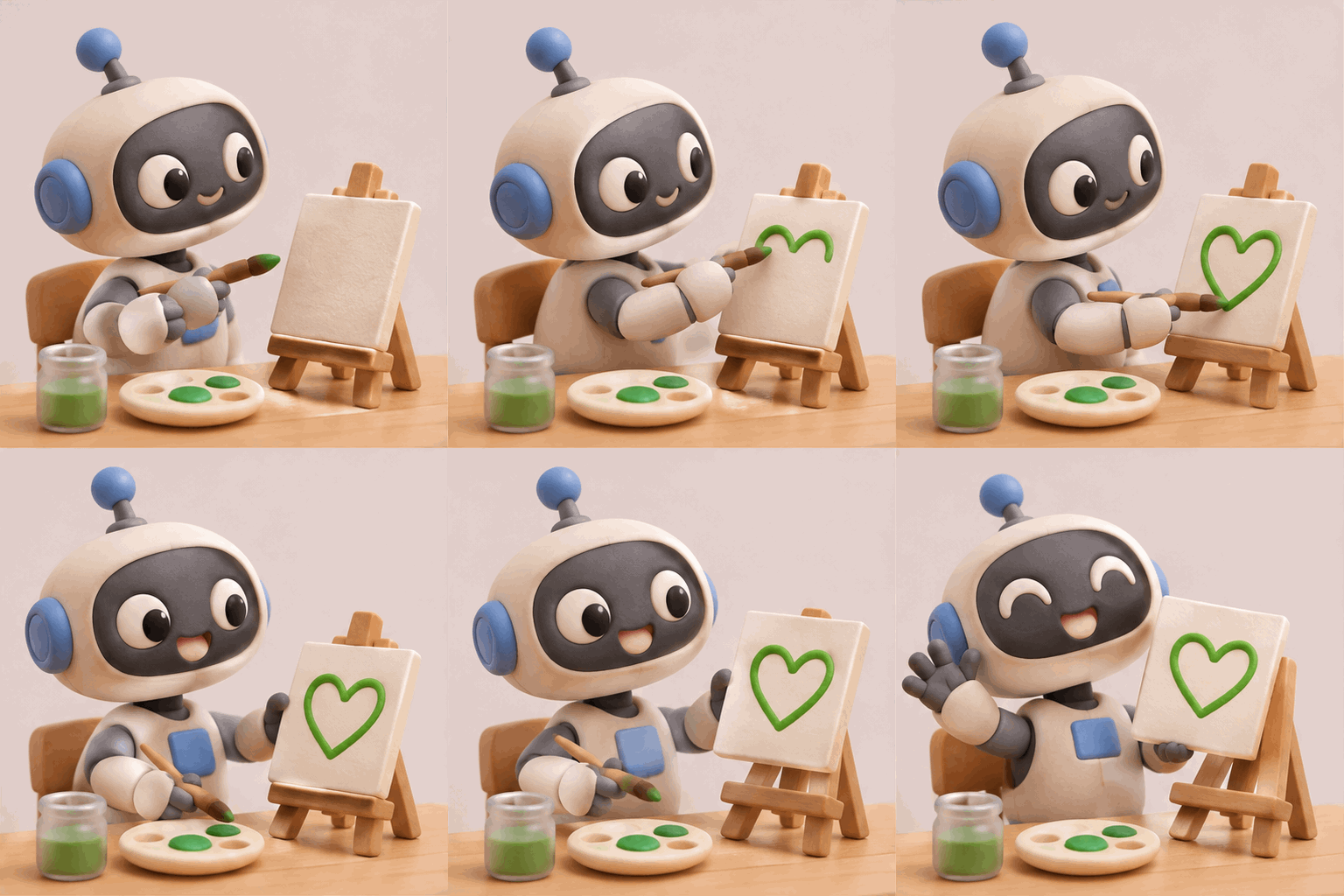
Flare on the left, Sunburst on the right. Same prompt (“A small robot in a matte claymation style paints a green heart on a canvas, proudly holds it up and waves”), 9 frames, normal speed, medium quality.
Three examples to try yourself
With GIFs, it helps to describe the motion step by step and to lock down the camera and the background. That way the character stays the same in every frame.
- Reaction GIF: “A small, round cartoon cat sits in front of a laptop, spots some good news, opens its eyes wide and cheers with both paws. Static camera, same background, no text.” Settings: 9 frames, normal speed.
- Product in motion: Upload a photo of your coffee mug and write: “Steam slowly rises from the mug, the light gently moves from left to right. The mug, its shape and colors stay exactly the same.” Settings: 12 frames, slow speed.
- Loading animation: “Three green dots bounce up and down one after another, white background, flat style.” Settings: 6 frames, fast speed, square format.


The reaction GIF from the first example. Flare on the left, Sunburst on the right, same prompt, 9 frames, normal speed, low quality. Flare leans toward a 3D look, Sunburst toward a flatter cartoon style.
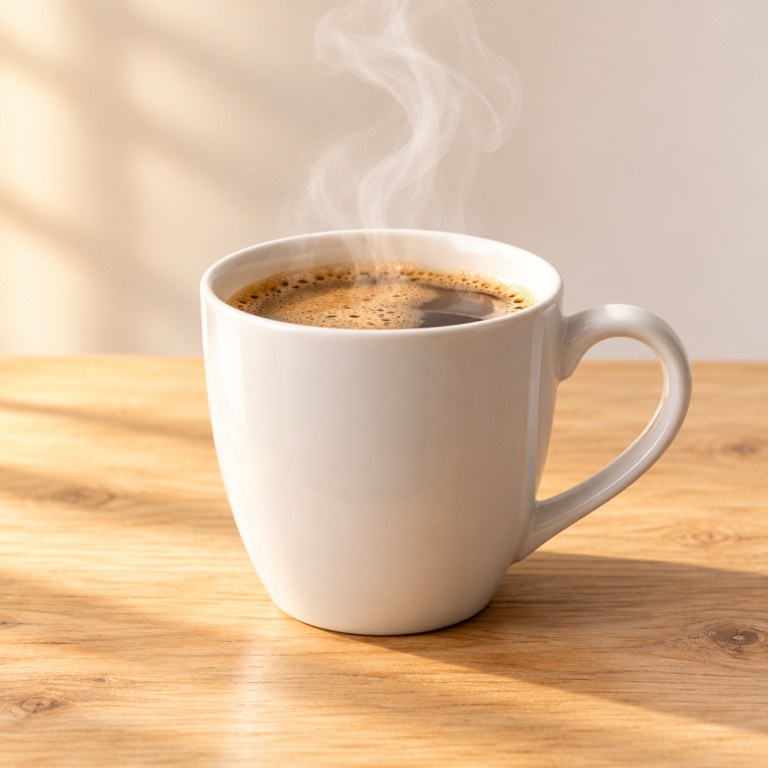
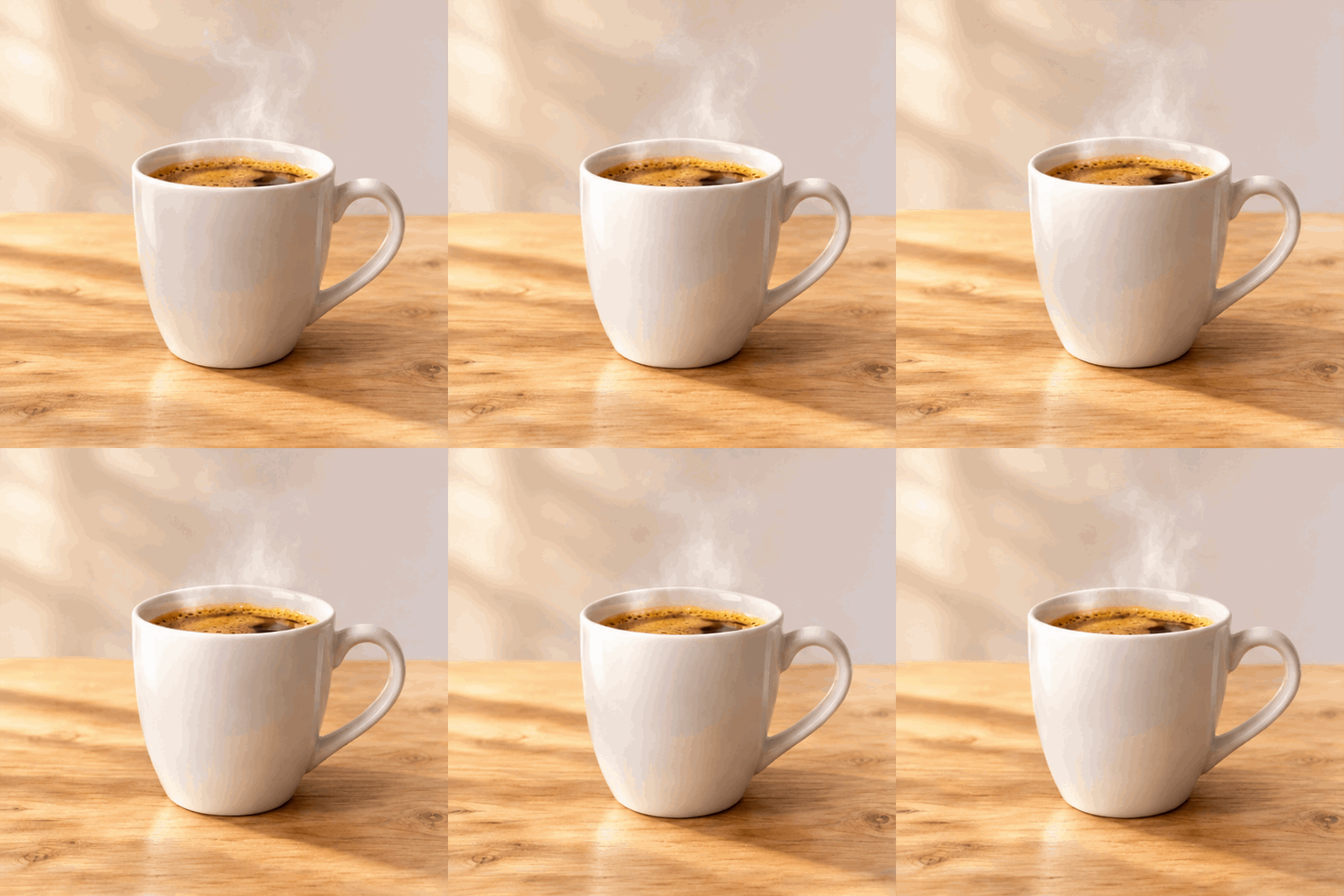
The second example: the reference photo on the left, the GIF GPT Image 2.6 Flare made from it on the right. 12 frames, slow speed, low quality.

The third example, the loading animation made with GPT Image 2.6 Flare: 6 frames, fast speed, low quality.
For still images, Sunburst does better with a specific brief than with a vibe. “Studio photo of a turquoise travel mug on a cream background, soft shadow, no text” gets you what you have in mind far more reliably than “a nice picture of a mug.”
What an image costs on ChatX
With GPT Image 2.6, the price depends on the quality level. Format and aspect ratio don’t matter. Each reference image adds 3,000 tokens.
| Quality | Tokens per image |
|---|---|
| Low | 14,000 |
| Medium | 25,000 |
| High | 30,000 |
| Very high | 52,000 |
| Maximum | 118,000 |
Depending on the number of frames and the quality, a GIF starts at around 9,500 tokens for four frames at low quality. A 9-frame GIF costs 20,000 tokens, barely more than a single still image. ChatX shows you the exact price before you create anything, so you never pay more than what’s displayed. All you need to try it is a free account.